
Powershell Updating Local Admin Passwords Securely 2 of 3
Below is an example of how to remotely (using PowerShell) update and change the Local Administrator password securely. This is not my script, I received this script along with many others from the SANS SEC 505 course. I have not altered it in any way.
Updating the Passwords of the Local Administrator on remote mahcines (You must have a Certificate either from your CA or another Certificate Authority):
This script will recover the local administrator password that you have created with the first part (1 of 3) which is decrypted by your Private Key Certificate.
Continue readingPowershell Updating Local Admin Passwords Securely 1 of 3
So I haven’t posted in a bit but I’ve seen this request many times. Below is an example of how to remotely (using PowerShell) update and change the Local Administrator password securely. This is not my script, I received this script along with many others from the SANS SEC 505 course. I have not altered it in any way.
Updating the Passwords of the Local Administrator on remote mahcines (You must have a Certificate either from your CA or another Certificate Authority):
Continue readingIpad Lockdown Mobileconfig
It is possible to put an iPad or iPhone into ‘Store Demo’ mode so that the home button and swipe to home gesture is disabled. If you have seen the iPads in the Apple Store running the smart sign apps then you will know what I mean.
It is actually pretty trivial to make this work, all you need to do is install a correctly formatted mobile config plist over the air from a web server.
Continue readingQuestions About Mdt 2012 Driver Setup
So I’ve had a lot of questions about my MDT 2012 Driver setup and hopefully this post will explain a little bit about it. Let me know if you have any questions
Personally I have a folder on my server called _Source_Drivers. I keep all my drivers here and import them into MDT but keep the original. Here is what my file structure of this folder looks like.

Mdt 2012 Installing a Custom Dictionary in Office 2010
So, some might not need this but thought I would share anyways. I have created my new MDT 2012 Deployment Share and want to add Microsoft Office 2010 as an application, but I also need to customize that deployment of Office 2010 when I’m deploying my new OS. Here are the steps on how to do this, but also how to create a custom Office 2010 Install.
- Once you've setup everything for you OS, go to the Applications folder on your Deployment Share and right click>New Application
- Once there, put in the relavent information including where your resource CD is located.
- THen once you have done this, you will notice that there is an extra tab compared to other applications. This is because Microsoft Deployment Toolkit recognizes that it's Office 2010 and gives you a few more options.
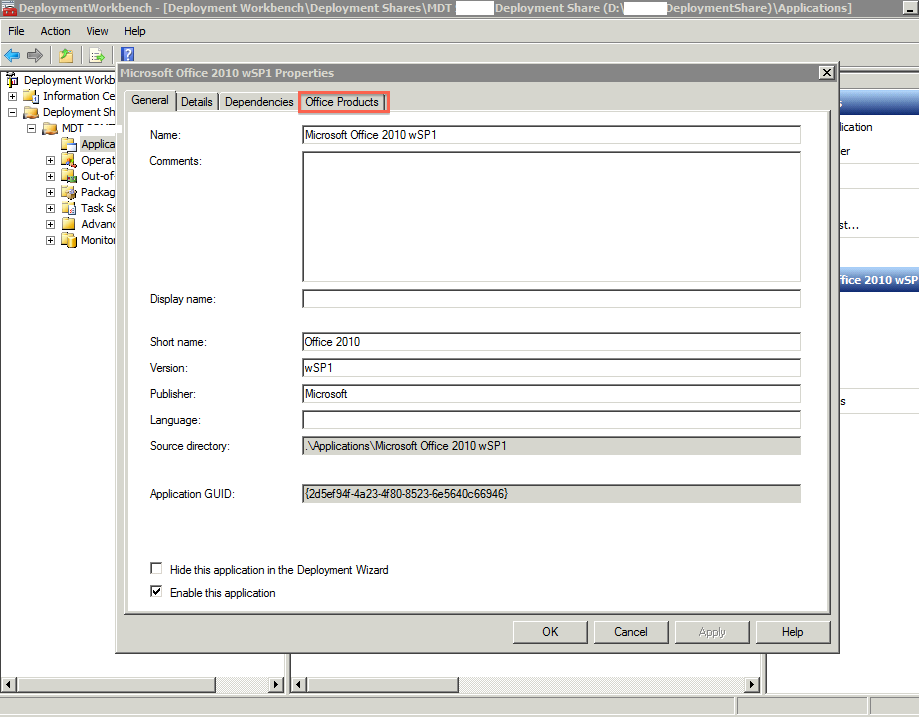
- Click on the Office Products Tab and you should now see this screen:
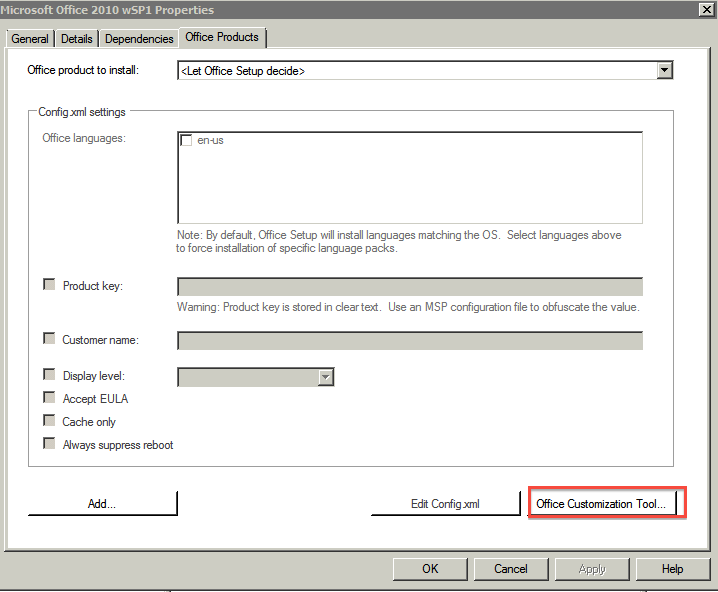
- Now click on the Office Customization Tool
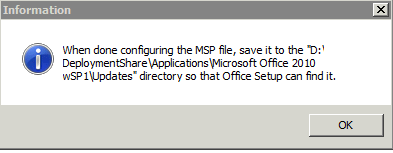
- You will be prompted with a warning box, please read and understand this. Any Customizations you make are saved in a customization file and need to be moved to the appropriate folder within your Office 2010 source file.
- Then the Office Customization Tool dialog box shows up. You can do ton's of customizations but for this post it's all about adding a Custom Dictionary to Office 2010.
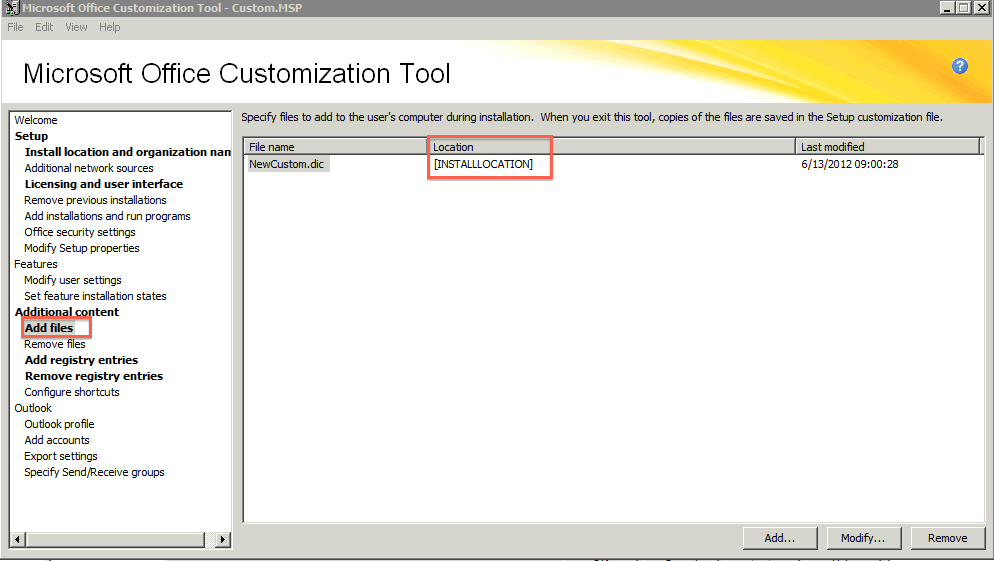
- Once there select Add Files and go to where your .Dic file is at and make sure you select INSTALLLOCATION as the option.
- Then click on Add Registry Entires
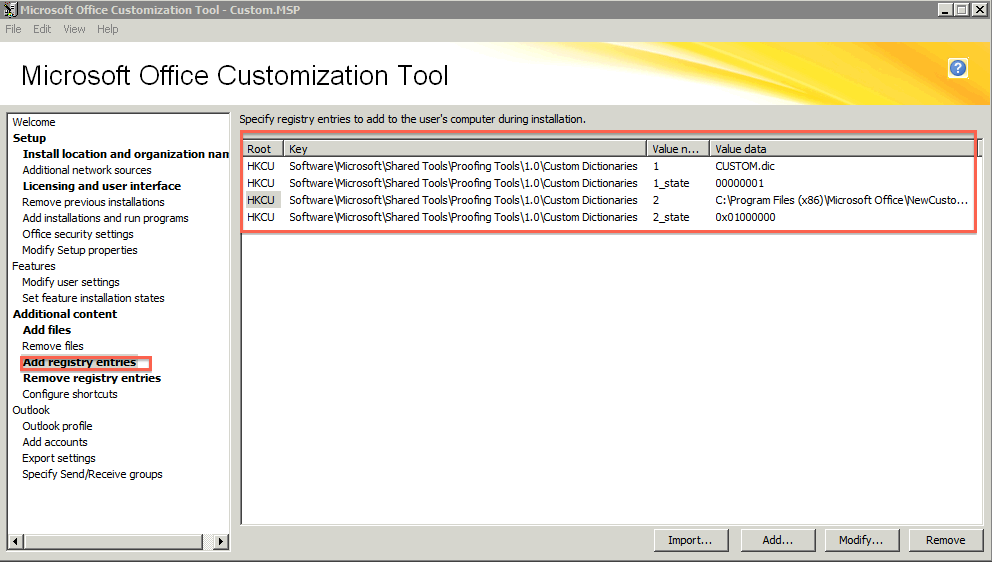
- Add the Registry settings that you see in the image above
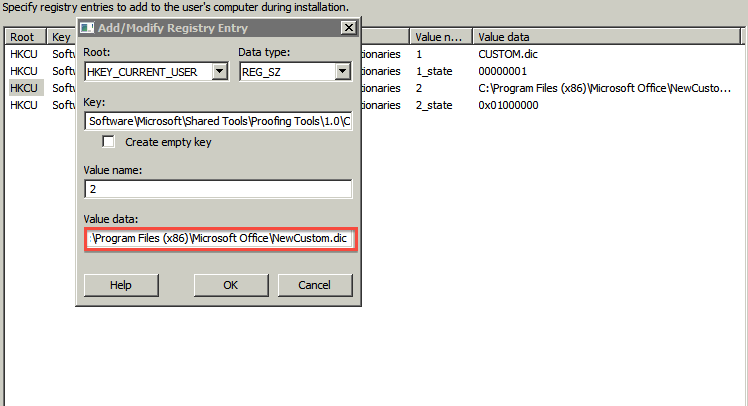
- Here is a more detailed view of what you should see when you select Add... in the bottom corner:
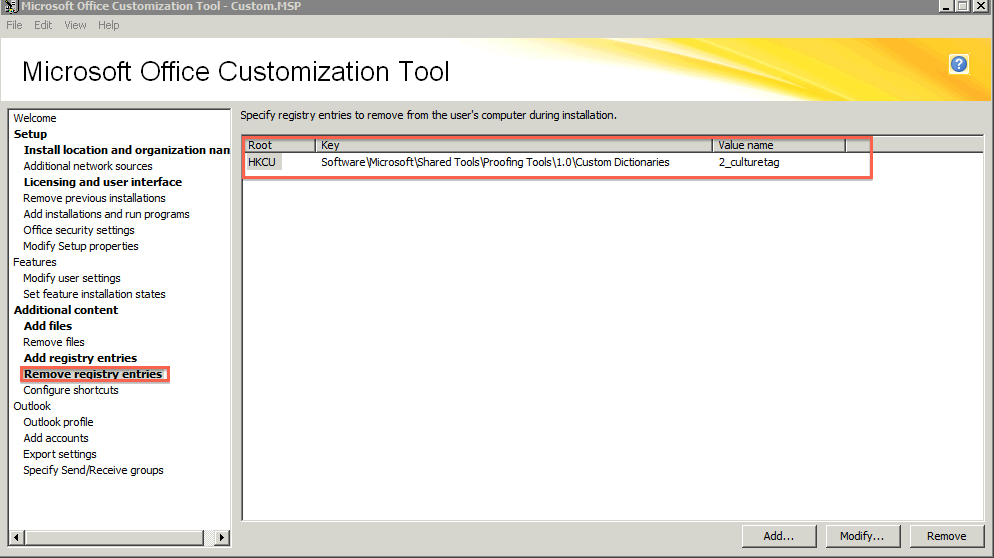
- Then select Remove Registry Entries, this is needed to remove any previous settings when Office 2010 Installs originally.
- That's it, now save your MSP File in the appropriate location and you should be good to go.
Mdt 2012 Deployment Guide Step by Step 11 of 11
Preparing WDS to enable PXE Boot (optional but very useful)
- Minimize the Deployment Workbench application
- Open “Windows Deployment Services” from Start/Admin Tools
- Expand Servers / CONFIG-DEPLOY.config.local and right-click on Boot Images and select Add Boot Image. If the boot image already exists, right click on it and select Replace Boot Image to replace it with a newer version
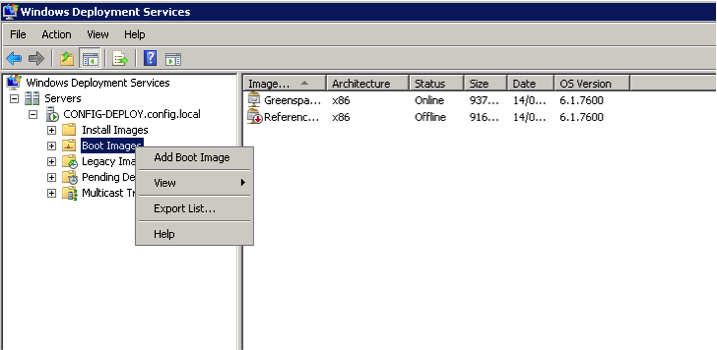
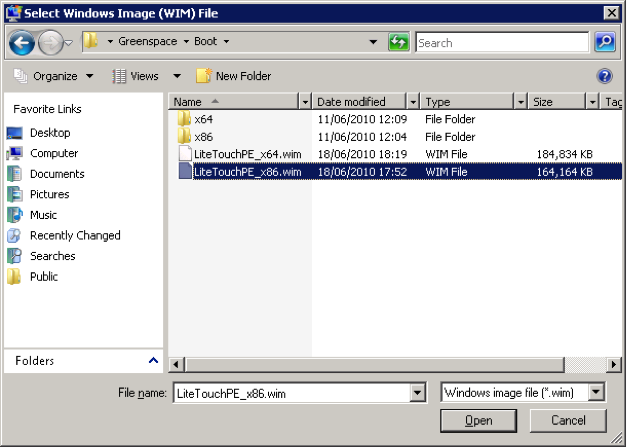
- Browse to the Deployment Share location (e.g. E:\DeploymentShares\Customername) and open the Boot folder
- Select the LiteTouchPE_x86.wim file and click Open
Mdt 2012 Deployment Guide Step by Step 10 of 11
Automating the Deployment Process
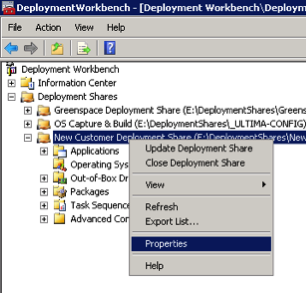
- Right-click on the deployment share and select Properties
- Select the “Rules” tab
- In the main window, edit the settings as required. A sample CUSTOMSETTINGS.INI is below but feel free to change it as needed…
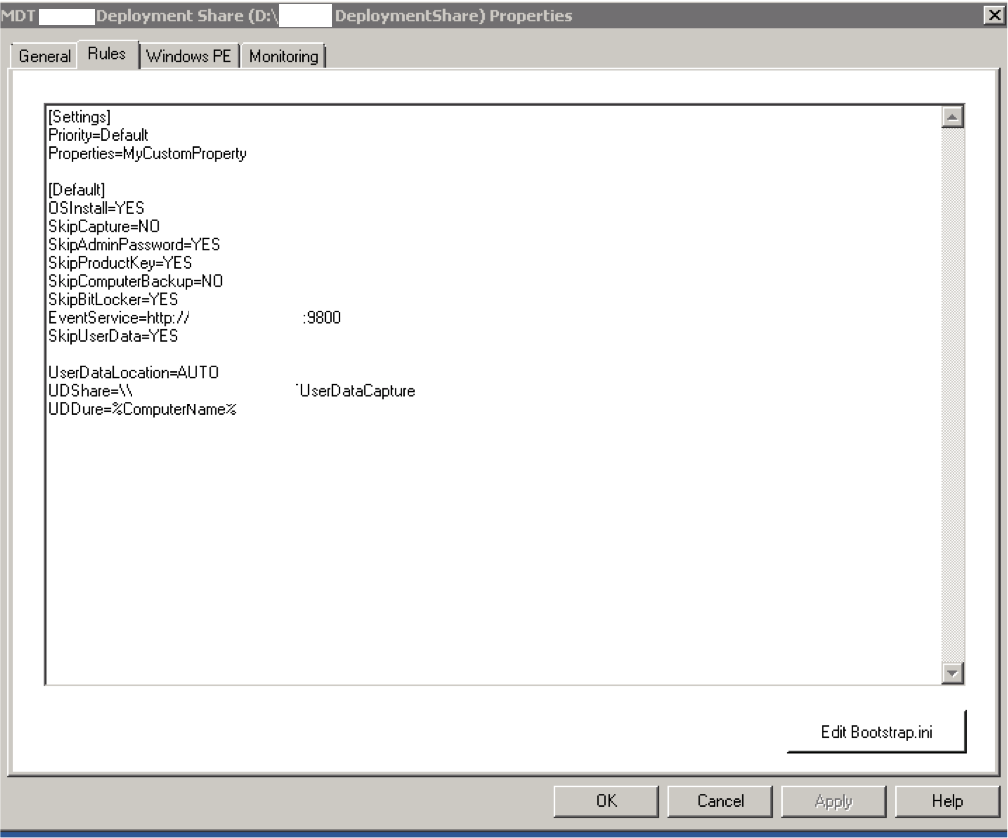
| [Settings]
Priority=Default [Default ] _SMSTSORGNAME=Customer SkipBDDWelcome=YES SkipProductKey=YES ProductKey= XXXX-XXXX-XXXXX-XXXXX OverrideProductKey=XXXX-XXXX-XXXXX-XXXXX SkipDeploymentType=YES DeploymentType=NEWCOMPUTER SkipDomainMembership=NO JoinDomain=domain.com DomainAdminDomain=domain.com DomainAdmin=MDTAddComputer DomainAdminPassword=Pa55w0rd MachineObjectOU=ou=example,dc=domain,dc=com OrgName=Customer SkipUserData=YES SkipTaskSequence=NO TaskSequenceID=TASKSEQID Continue reading |